

The Art of the Pixel: Mastering Modern OpenGL 4.6 for Demoscene Productions
The screen flickers, a symphony of light and shadow explodes, impossible geometry twists and reforms, all within a few kilobytes or megabytes of executable code. This is the demoscene, a vibrant subculture where technical prowess meets artistic vision, pushing the boundaries of real-time computer graphics. At the heart of countless legendary productions, from the intricate landscapes of a 4k intro to the mind-bending effects of a composited demo, lies OpenGL. In 2026, while newer APIs like Vulkan and DirectX 12 offer cutting-edge control, OpenGL 4.6 remains a formidable and widely adopted workhorse, celebrated for its robust feature set, excellent portability, and a learning curve that, while steep, is less punishing than its more explicit brethren. This guide, crafted for the discerning demoscene coder, will demystify the core tenets of modern OpenGL, empowering you to sculpt digital realities with precision and performance for your next award-winning production. Prepare to dive deep into the GPU’s mind, mastering VAOs, VBOs, framebuffers, texture units, and the programmable shader pipeline that breathes life into your creative code.
The Modern OpenGL 4.6 Pipeline & Shader Programs
Gone are the days of the fixed-function pipeline, where OpenGL dictated how geometry was transformed and lit. Modern OpenGL, particularly since version 3.x and culminating in 4.6, embraces a fully programmable pipeline, placing immense power and flexibility directly into the hands of the demoscene coder. This paradigm shift, driven by the advent of Shader Model 3.0 and beyond, allows us to write small programs called shaders that run directly on the GPU, defining every aspect of vertex manipulation and pixel coloring.
The core stages relevant to most demoscene productions include:
- Vertex Shader: The first programmable stage. It processes individual vertices, transforming their positions from model space to clip space, calculating attributes like normals or texture coordinates, and passing them down the pipeline.
- Tessellation Shaders (Optional): Divides complex primitives into simpler ones, dynamically adding detail based on distance or other factors. Highly useful for adaptive LOD (Level of Detail) in procedural terrain.
- Geometry Shader (Optional): Operates on entire primitives (points, lines, triangles), allowing you to generate new primitives or discard existing ones. Useful for effects like particle explosions or fur rendering.
- Rasterization: This fixed-function stage converts primitives into a set of fragments (potential pixels) and interpolates vertex attributes across them.
- Fragment Shader: The second crucial programmable stage. It processes individual fragments, determining their final color. This is where lighting, texturing, post-processing effects, and most of the visual magic happens.
- Blending & Depth Test: Fixed-function stages that combine fragment colors with existing framebuffer contents and determine visibility.
The language of these shaders is GLSL (OpenGL Shading Language). For OpenGL 4.6, you’ll typically use GLSL version 460. GLSL resembles C, with strong typing, vector and matrix types, and built-in functions for common graphics operations.
To use shaders, you’ll go through a standard ritual:
- Create Shaders:
glCreateShader(GL_VERTEX_SHADER)orglCreateShader(GL_FRAGMENT_SHADER). - Source Code:
glShaderSource(shaderID, 1, &shaderCodeString, NULL). - Compile:
glCompileShader(shaderID). Always checkglGetShaderiv(shaderID, GL_COMPILE_STATUS, &success)andglGetShaderInfoLogfor errors! - Create Program:
glCreateProgram(). - Attach Shaders:
glAttachShader(programID, vertexShaderID). - Link Program:
glLinkProgram(programID). Again, checkglGetProgramiv(programID, GL_LINK_STATUS, &success)andglGetProgramInfoLogfor errors. - Use Program:
glUseProgram(programID).
Once linked, you can pass data to your shaders using uniforms (global, constant data for all vertices/fragments, like matrices, time, colors) and attributes (per-vertex data, like position, normal, UVs).
// Example: Minimal Vertex Shader
const char* vsSource = R"(
#version 460 core
layout (location = 0) in vec3 aPos;
uniform mat4 modelViewProjection;
void main() {
    gl_Position = modelViewProjection * vec4(aPos, 1.0);
}
)";


OpenGL's programmable pipeline runs through [GLSL shaders that run on OpenGL](/shader-programming-intro/) — our shader guide is the natural companion to this one.

// Example: Minimal Fragment Shader
const char* fsSource = R"(
#version 460 core
out vec4 FragColor;
uniform vec3 uColor;
void main() {
    FragColor = vec4(uColor, 1.0);
}
)";

// In C++ code after linking programID:
GLint posAttrib = glGetAttribLocation(programID, "aPos"); // Should be 0 due to layout (location = 0)
GLint mvpUniform = glGetUniformLocation(programID, "modelViewProjection");
GLint colorUniform = glGetUniformLocation(programID, "uColor");

glUseProgram(programID);
glUniformMatrix4fv(mvpUniform, 1, GL_FALSE, &myMVPMatrix[0][0]);
glUniform3f(colorUniform, 1.0f, 0.5f, 0.2f);
// Now draw your geometry...
This programmable approach allows for virtually limitless visual effects, turning the GPU into a powerful parallel processing engine for your demoscene ambitions.

Vertex Array Objects (VAOs) & Vertex Buffer Objects (VBOs)
Efficiency is paramount in demoscene, and managing geometry data effectively is a critical first step. This is where Vertex Buffer Objects (VBOs) and Vertex Array Objects (VAOs) shine. Together, they provide a highly optimized way to store and describe your mesh data on the GPU, minimizing CPU-GPU communication and state changes.
Vertex Buffer Objects (VBOs) are simply chunks of memory on the GPU dedicated to storing vertex data. Instead of sending vertex data from CPU to GPU every frame, you upload it once (or update it strategically) and reference it whenever needed. This dramatically reduces bus bandwidth usage, a common bottleneck.
You typically use VBOs to store:
- Positions:
vec3forx, y, zcoordinates. - Normals:
vec3for surface orientation, crucial for lighting. - Texture Coordinates (UVs):
vec2for mapping textures onto surfaces. - Colors:
vec3orvec4for per-vertex colors.
The lifecycle of a VBO:
- Generate:
glGenBuffers(1, &vboID); - Bind:
glBindBuffer(GL_ARRAY_BUFFER, vboID);(orGL_ELEMENT_ARRAY_BUFFERfor indices). - Buffer Data:
glBufferData(GL_ARRAY_BUFFER, dataSize, dataPointer, GL_STATIC_DRAW);GL_STATIC_DRAW: Data is set once and used many times (e.g., static scene geometry).GL_DYNAMIC_DRAW: Data is changed frequently but used many times (e.g., dynamic terrain).GL_STREAM_DRAW: Data is set once and used a few times (e.g., per-frame particle data).
Vertex Array Objects (VAOs), introduced in OpenGL 3.0, are often misunderstood but are absolutely essential for modern OpenGL performance. A VAO is a container for all the state needed to supply vertex attributes to your shaders. Instead of repeatedly calling glBindBuffer, glVertexAttribPointer, and glEnableVertexAttribArray for each VBO and attribute before every draw call, you encapsulate all these calls within a VAO.
When you bind a VAO (glBindVertexArray(vaoID)), all the vertex attribute configurations you previously set while that VAO was bound are restored. This means:
- The VBOs currently bound to
GL_ARRAY_BUFFERwhenglVertexAttribPointerwas called. - The
glVertexAttribPointercalls themselves (specifying data format, offset, stride). - The
glEnableVertexAttribArraycalls.
The lifecycle of a VAO:
- Generate:
glGenVertexArrays(1, &vaoID); - Bind:
glBindVertexArray(vaoID); - Configure: While the VAO is bound, perform all your VBO bindings and
glVertexAttribPointercalls.// Example: Setting up a VAO for positions and colors GLuint vao, vbo; glGenVertexArrays(1, &vao); glGenBuffers(1, &vbo);
The techniques covered in real-time rendering built on OpenGL build directly on the pipeline concepts explained here.
glBindVertexArray(vao); // Start recording VAO state

glBindBuffer(GL_ARRAY_BUFFER, vbo);
float vertices[] = {
    // Positions         // Colors
    0.5f, -0.5f, 0.0f,   1.0f, 0.0f, 0.0f, // bottom right
    -0.5f, -0.5f, 0.0f,  0.0f, 1.0f, 0.0f, // bottom left
    0.0f,  0.5f, 0.0f,   0.0f, 0.0f, 1.0f  // top
};
glBufferData(GL_ARRAY_BUFFER, sizeof(vertices), vertices, GL_STATIC_DRAW);

// Position attribute (location 0 in shader)
glVertexAttribPointer(0, 3, GL_FLOAT, GL_FALSE, 6 * sizeof(float), (void*)0);
glEnableVertexAttribArray(0);
// Color attribute (location 1 in shader)
glVertexAttribPointer(1, 3, GL_FLOAT, GL_FALSE, 6 * sizeof(float), (void*)(3 * sizeof(float)));
glEnableVertexAttribArray(1);

glBindVertexArray(0); // Unbind VAO
glBindBuffer(GL_ARRAY_BUFFER, 0); // Unbind VBO
```
4. Draw: To render, simply glBindVertexArray(vaoID); and then issue a draw call.
Understanding OpenGL requires understanding the hardware — ComputerHeaven’s GPU hardware specifications for OpenGL rendering explains the specs that determine performance.
For demoscene productions, VAOs are critical. They minimize the number of API calls per frame, allowing the CPU to submit draw commands to the GPU much faster, freeing up cycles for complex procedural generation or other tasks. Always use VAOs when rendering geometry!
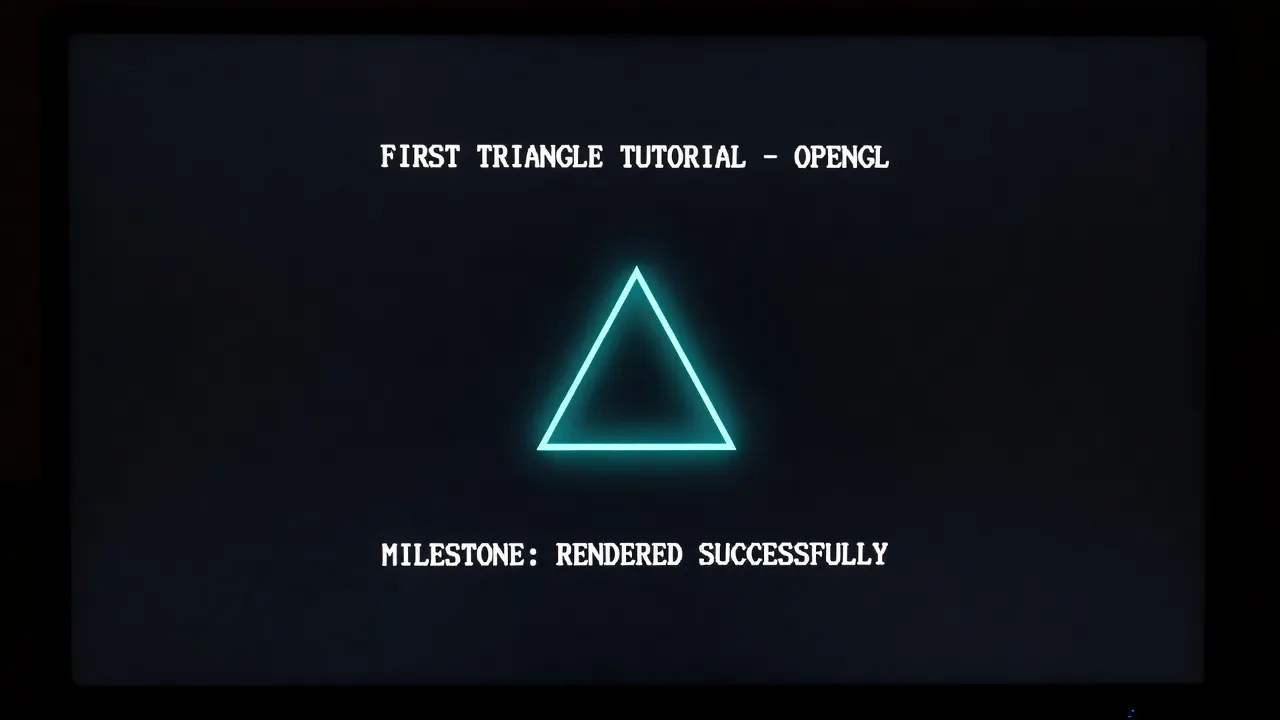
Texture Units & Samplers
Textures are the skin of your digital worlds, bringing color, detail, and complexity to your geometry. In modern OpenGL, textures are versatile data containers, not just images. They can store color data, normal maps, displacement maps, data for procedural effects, or even act as render targets for offscreen rendering.
The process of using a texture involves:
- Generate Texture:
glGenTextures(1, &textureID); - Bind Texture:
glBindTexture(GL_TEXTURE_2D, textureID);(orGL_TEXTURE_3D,GL_TEXTURE_CUBE_MAP, etc.). - Set Parameters:
glTexParameteri(GL_TEXTURE_2D, GL_TEXTURE_WRAP_S, GL_REPEAT);GL_TEXTURE_WRAP_S/T/R: Defines behavior for texture coordinates outside [0, 1] range (e.g.,GL_REPEAT,GL_CLAMP_TO_EDGE).GL_TEXTURE_MIN_FILTER/GL_TEXTURE_MAG_FILTER: Defines how the texture is sampled when magnified or minified (e.g.,GL_LINEAR,GL_NEAREST,GL_LINEAR_MIPMAP_LINEAR).
- Upload Data:
glTexImage2D(GL_TEXTURE_2D, 0, GL_RGB, width, height, 0, GL_RGB, GL_UNSIGNED_BYTE, data);datacan be loaded from an image file (e.g., usingstb_image.h) or generated procedurally.
- Generate Mipmaps (Optional but Recommended):
glGenerateMipmap(GL_TEXTURE_2D);Mipmaps are scaled-down versions of the texture used to prevent aliasing artifacts when objects are far away.
A crucial concept is Texture Units. GPUs have a limited number of texture units, typically 16 or more, allowing you to bind multiple textures simultaneously for a single draw call. Each texture unit is an indexed point to which you can bind a texture.
// In C++ code:
glActiveTexture(GL_TEXTURE0); // Activate texture unit 0
glBindTexture(GL_TEXTURE_2D, diffuseTextureID);

glActiveTexture(GL_TEXTURE1); // Activate texture unit 1
glBindTexture(GL_TEXTURE_2D, normalMapID);


Nowhere is OpenGL pushed harder than in [4K intros that push OpenGL to its limits](/4k-intro-coding/) — tiny executables that extract maximum quality from the API.

// In Fragment Shader:
uniform sampler2D diffuseSampler;
uniform sampler2D normalSampler;

void main() {
    vec4 diffuseColor = texture(diffuseSampler, fs_in.TexCoords);
    vec3 normal = texture(normalSampler, fs_in.TexCoords).rgb * 2.0 - 1.0;
    // ... use diffuseColor and normal
}

// Back in C++ after glUseProgram(shaderProgram):
GLint diffuseLoc = glGetUniformLocation(shaderProgram, "diffuseSampler");
GLint normalLoc = glGetUniformLocation(shaderProgram, "normalSampler");
glUniform1i(diffuseLoc, 0); // Assign sampler "diffuseSampler" to texture unit 0
glUniform1i(normalLoc, 1);  // Assign sampler "normalSampler" to texture unit 1
This allows your shaders to sample from different textures concurrently, enabling complex material systems, multi-layered effects, and intricate data lookups. For demoscene, textures are often procedurally generated in real-time or used as lookup tables for complex mathematical functions, blurring the line between static assets and dynamic computation. Modern features like texture arrays and texture views further extend their utility, allowing for efficient batching of textures or reinterpreting existing texture data.
Framebuffers & Render Targets
While your GPU is constantly rendering to a default framebuffer (the one displayed on your screen), modern OpenGL allows you to create and render to custom Framebuffer Objects (FBOs). An FBO acts as an offscreen rendering surface, letting you render scenes or effects into textures, which can then be used as input for subsequent rendering passes. This is the cornerstone of most advanced real-time rendering techniques.
An FBO itself is just a container; it needs attachments to become functional. These attachments are either:
- Textures: For color, depth, or stencil data that you want to sample from later in a shader.
- Renderbuffers: For depth or stencil data that will not be sampled from, providing a slight performance advantage by avoiding texture overhead.
The process for setting up an FBO:
- Generate FBO:
glGenFramebuffers(1, &fboID); - Bind FBO:
glBindFramebuffer(GL_FRAMEBUFFER, fboID);(all subsequent rendering commands target this FBO). - Create & Attach Color Texture:
GLuint colorTexture;
glGenTextures(1, &colorTexture);
glBindTexture(GL_TEXTURE_2D, colorTexture);
glTexImage2D(GL_TEXTURE_2D, 0, GL_RGB, width, height, 0, GL_RGB, GL_UNSIGNED_BYTE, NULL);